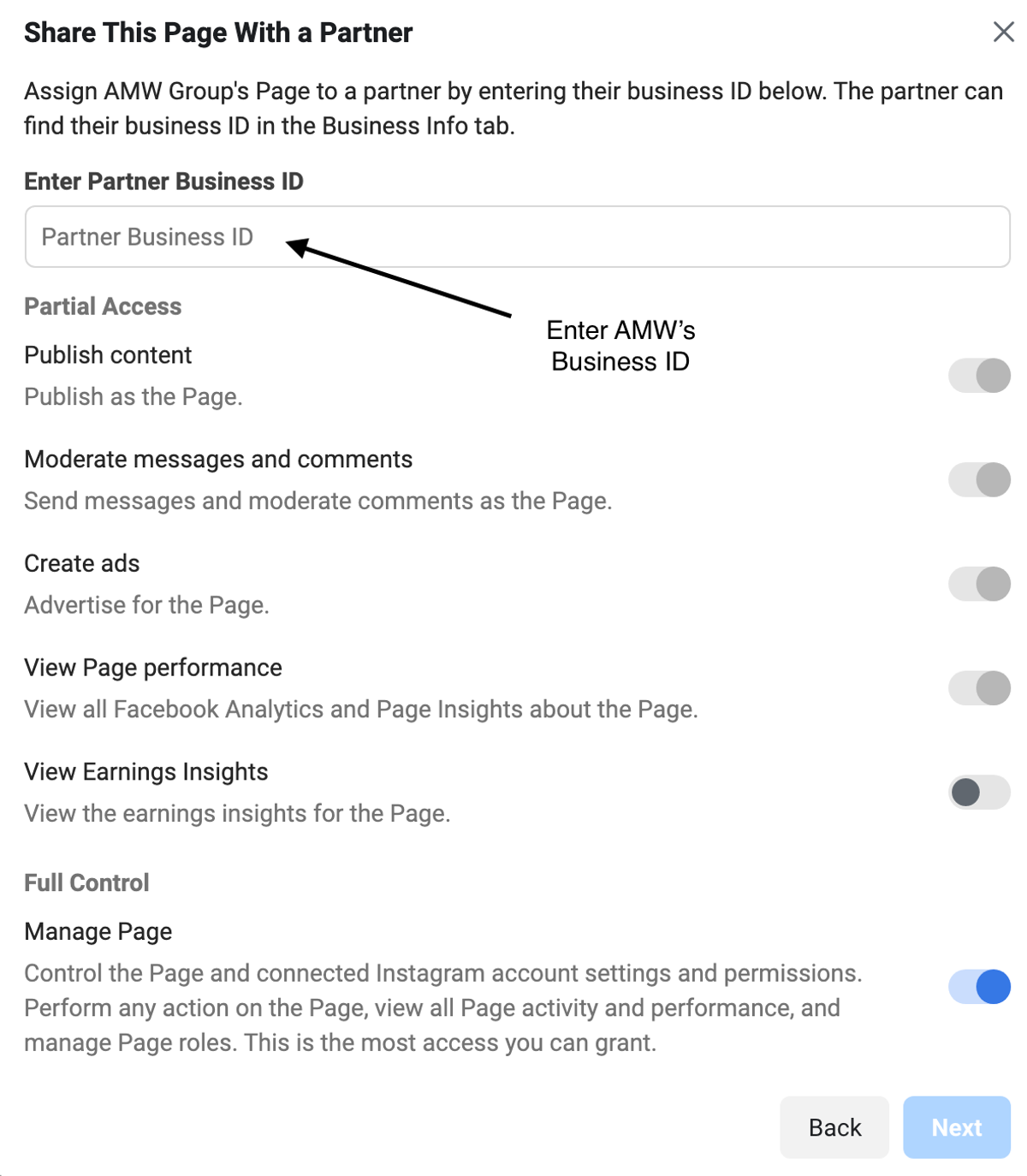

Follow this two-step process to provide Ad and page management access to our team. You will need to have a Business Manager account associated with your Facebook Ads account.
Step 1 - Provide Access to Your Ads
- Go to business.facebook.com and select the correct Business profile associates with the campaign.
- On the left menu, select Business Settings.
- Click on Accounts to fully open the settings menu.
- Click on Ad Accounts
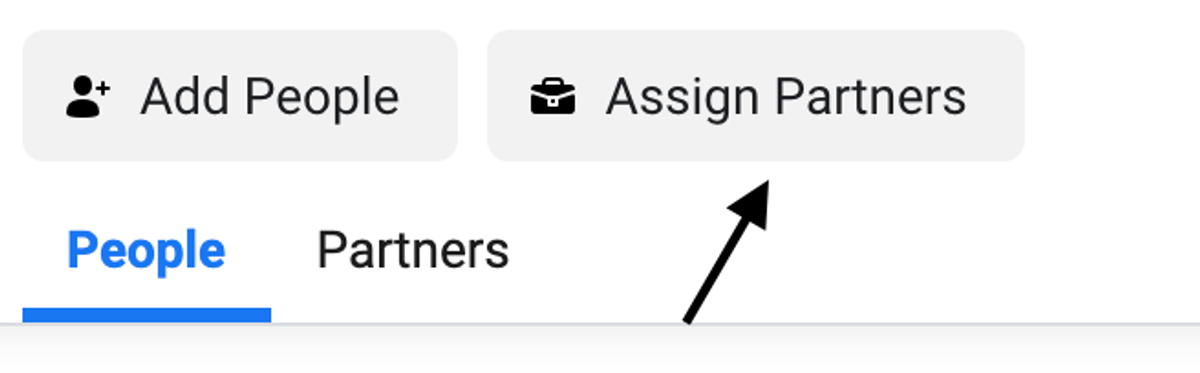
- In the top right, click on Assign Partner.
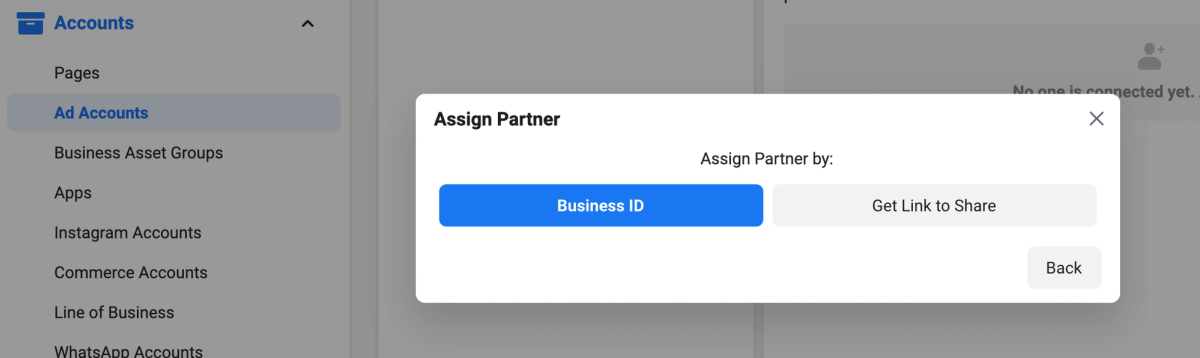
- Select Business ID
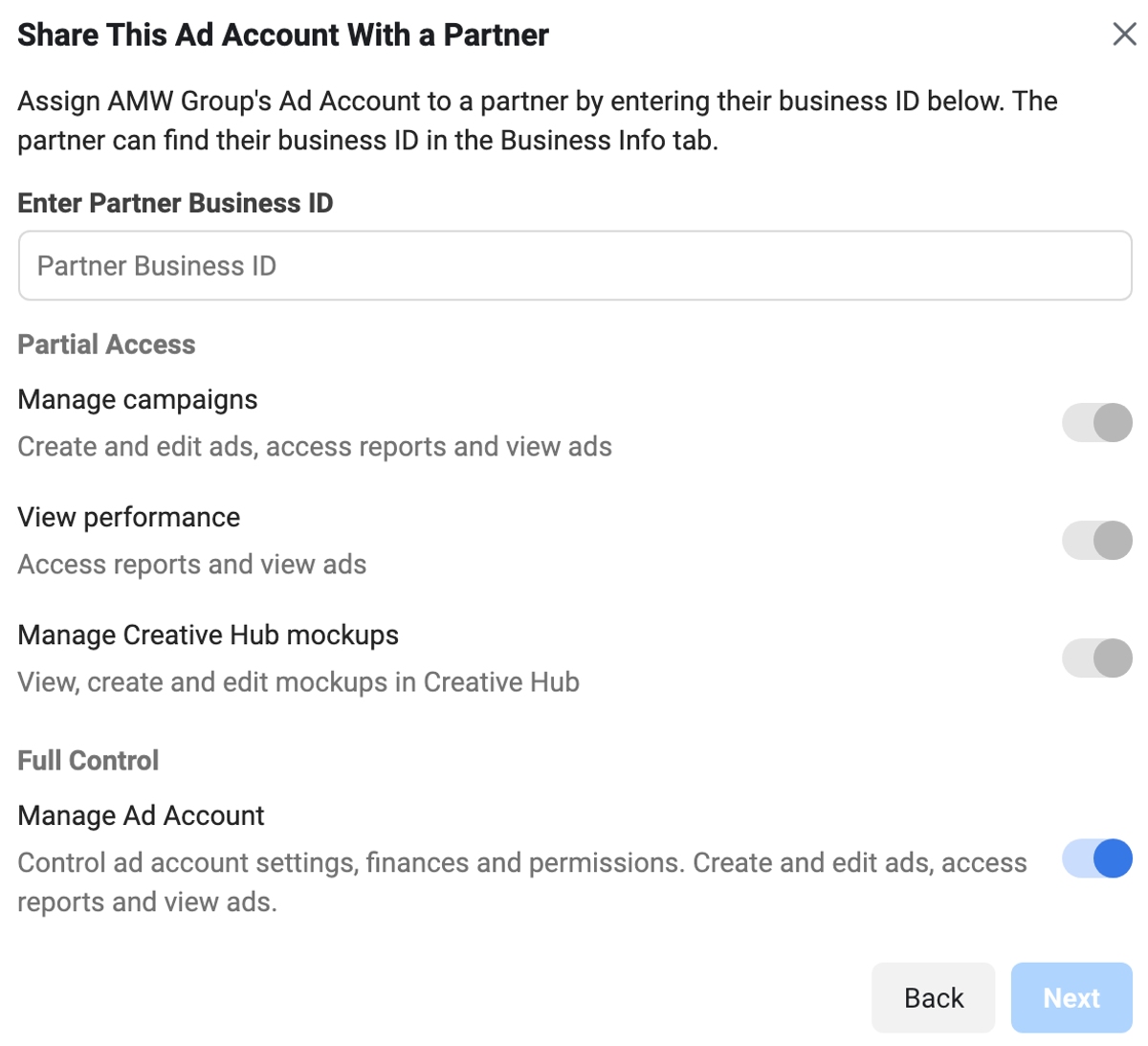
- This will open a new panel in which to enter your AMW’s Business ID.
- Select Full Control as we need it to effectively handle your advertising, press Next to confirm.
Step 2 - Provide Access to Your Pages
You’ll also want to provide access to your Page(s) to allow full access to effectively manage your advertising. To do so:
- Open your Business Manager.
- Click on Accounts to fully open the settings menu
- Click on Pages.
- In the top right, click on Assign Partner.
- Select Business ID
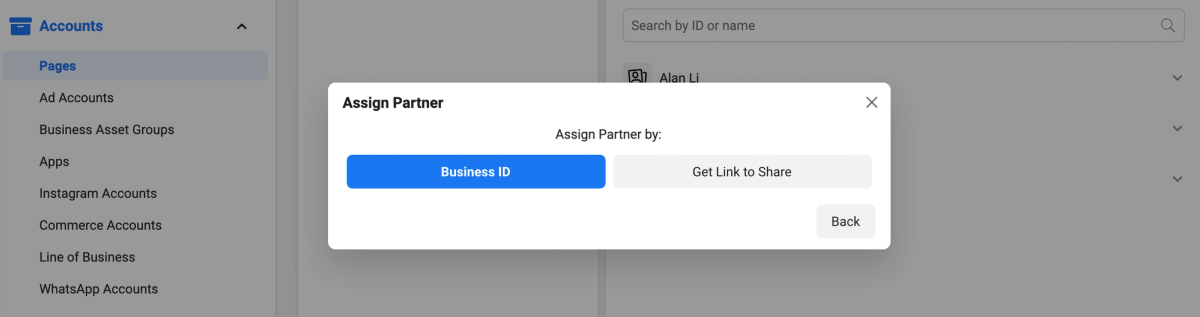
- This will open a new panel in which to enter your AMW’s Business ID.
- Select Full Control as we need it to effectively handle your advertising, press Next to confirm.